
Ragnar Scalper on MetaTrader 5
The Expert Advisor for gold (XAUUSD) in MetaTrader 5, version 1.01: from an empty MetaTrader to a running EA, every setting and every part of its panel.
1. What you need
- MetaTrader 5 desktop (Windows, or macOS) - the mobile app cannot run Expert Advisors.
- A broker account in MetaTrader 5 with XAUUSD (gold) and hedging mode. Netting accounts are not supported. Cent accounts work.
- An active Ragnar Scalper license.
- For live trading: MetaTrader 5 running all week. A VPS near your broker's server is strongly recommended - 20 ms ping or less is ideal, 50 ms at most. MetaTrader shows the ping at the bottom right of its window.
2. License and account
- Find your account number
In MetaTrader 5 open the Navigator (Ctrl+N) and look under Accounts: the number in front of the broker's name is your account number (login).
- Add it in the dashboard
Go to Dashboard > Accounts > MetaTrader 5, type the number and press Add account. A label (for example "Exness cent") is optional.
- Know the rules of a license
- A subscription covers 5 MT5 accounts, Lifetime 15, plus 2 demo accounts free.
- The accounts may be in any account-holder name - only their number counts.
- Once real trades of an account reached us, it stays on the license until the end of the billing cycle.
3. Download and install
- Download the EA
In Dashboard > Downloads press Download RagnarScalper.ex5. License holders also find the ready-made set files there.
- Open MetaTrader's data folder
In MetaTrader 5: File > Open Data Folder. A window opens - go into MQL5 > Experts.
- Copy the file
Copy
RagnarScalper.ex5into that Experts folder. Optional: copy the set files into MQL5 > Presets. - Refresh
Back in MetaTrader, in the Navigator right-click Expert Advisors > Refresh. RagnarScalper appears in the list.
4. Allow web access
The EA checks its license and reads the economic calendar over the internet, and MetaTrader only allows addresses you list. Open Tools > Options > Expert Advisors, tick Allow WebRequest for listed URL and add these two lines:
https://www.ragnarscalper.com
https://nfs.faireconomy.media
5. Start it on a chart
- Open an XAUUSD chart
File > New Chart > XAUUSD. We suggest the H1 timeframe so you see the candles the EA reads - but any timeframe works the same: the EA reads the one-hour structure by itself.
- Attach the EA
Drag RagnarScalper from the Navigator onto the chart. A window opens: on the Common tab tick Allow Algo Trading; on the Inputs tab keep the defaults, or press Load to load a set file. Press OK.
- Switch Algo Trading on
The Algo Trading button in MetaTrader's toolbar must be green. The panel appears on the chart and its status reads ACTIVE.
- Leave it running
The engines scan for levels every 15 minutes and place their orders. Quiet hours with no trade are normal - see the panel to know what each engine is doing.
6. The settings
All settings are on the EA's Inputs tab, in groups. The defaults are a complete, tested setup: you only need to choose how big each trade is (Money Management) and, for a prop firm, the Prop Firm limits. A set file stores all inputs at once.
Money Management
| Input | Default | What it does |
|---|---|---|
| Lot sizing method | Fixed lot | Fixed lot, Lot per 1000 of balance, Risk % of balance per trade (sized from the engine's stop loss) or Fixed risk amount per trade. |
| Lot | 0.01 | The fixed lot, or the lot per 1000 of balance in that mode. |
| Risk per trade, % of balance | 1.0 | Risk % mode: a stopped trade costs this share of the balance. |
| Risk per trade, account currency | 100 | Fixed risk mode: a stopped trade costs this amount. |
| Max lot per order | 0 (no limit) | No order above this lot, whatever the method gives. |
Prop Firm
| Input | Default | What it does |
|---|---|---|
| Prop Firm Mode | false | Switches the daily limits, the reset hour and Flat Hours below on. |
| Calculation method | Percent | Limits as % of the day's starting balance, or as fixed amounts. |
| Max daily loss | 2.0 | When equity falls this far below the day's start, every position of the EA closes and nothing new opens until the next day (0 = off). |
| Max daily profit | 3.0 | When reached, positions close (once old enough) and the EA rests until the next day (0 = off). |
| Daily reset hour | 0 | The hour (server time) the trading day starts; -1 = 17:00 Chicago (the CME day). |
| Flat Hours | false | Flat from 15:05 to 17:00 Chicago, for futures prop firms. |
News Filter
| Input | Default | What it does |
|---|---|---|
| Use news filter | true | Pause around news events from the live economic calendar. Allow the calendar's address under Tools > Options > Expert Advisors. |
| Impact level | High | High only, Medium and High, or every event. |
| Currencies | USD | Comma separated; ALL = every currency. |
| Pause minutes before / after | 30 / 30 | Pending orders lifted and nothing new in this window. |
Exit
| Input | Default | What it does |
|---|---|---|
| Exit mode | Auto | Auto = each engine uses its profile's exit. Custom = one stop loss, take profit and trailing for every engine (below). |
| Custom SL / TP / trail start / distance / step | 500 / 1500 / 100 / 250 / 50 | The custom exit in points of gold (1 point = 0.01 of price). |
| Minimum trading duration, seconds | 0 (off) | No take profit, no trailing and no closing by the EA before a trade is this old; the initial stop loss stays. Works with or without Prop Firm Mode. |
Engine A - D
| Input | Default | What it does |
|---|---|---|
| Enabled | true | Switch each engine on or off. |
| Direction | Both | Buy only, sell only or both. |
| Profile | A Shieldwall, B Valkyrie, C Drakkar, D Berserker | The engine's entry distance and exit - see Profiles. |
| Max open positions | A 5, B / C / D 1 | The engine's limit of open trades. |
| Trade a swing level again | Again, but not while a trade of it is open | Never, always, only after a loss there, or not while a trade of that level is open. |
Trailing
| Input | Default | What it does |
|---|---|---|
| Trailing timing (3 inputs) | 50 / 200 / 500 ms | How often a position is looked at and the minimum time between stop moves. Leave as they are. |
Volatility Filter
| Input | Default | What it does |
|---|---|---|
| Minimum mean H1 range, points | 0 (off) | Trade only while the average H1 candle range is at least this many points. |
| H1 candles | 24 | The candles that average is taken over. |
General
| Input | Default | What it does |
|---|---|---|
| Breakout timeframe | H1 | The timeframe the engines read the structure on. |
| EA comment / Magic number | RBS / 26112400 | Order comment and magic number base (A +0, B +1, C +2, D +3). Give every copy of the EA on the same account its own magic number. |
| Price distances | Automatic | Automatic = gold as it is, other symbols scaled by their volatility; Fixed = your multiplier. |
| Broker server time / Clock | Automatic / Server time | How the EA reads the broker's clock, and the clock of the Friday, Sunday and session B times. |
| Friday stop / minutes before close / Sunday start | 22:00 / 30 / 23:00 | When pending orders are cleared before the weekend and when the week's first scan happens. |
| Max slippage on closes | 50 | Allowed slippage (gold points) when the EA closes a position. |
| Log / Panel / Panel size | false / true / 0 (fit) | Extra journal lines, the chart panel and its size (0 = fit the chart; Mac / Retina screens: 150 - 200). |
The profiles
| Profile | Style | When it shines |
|---|---|---|
| Shieldwall | Defensive | Tight trailing that locks small profits quickly: a high win rate and a smoother equity curve. At home in ranging, stop-and-go markets. |
| Valkyrie | Balanced | A balanced entry distance with Shieldwall's protective exits. |
| Drakkar | Trend rider | Wider, later trailing that lets a breakout run: fewer but larger winners in trending, volatile markets. |
| Berserker | Aggressive | The earliest entry, wide targets and extra engine rules (order lifetime, session close). Built for the fast moves after a breakout. |
7. Reading the panel
The panel on the chart shows everything the EA knows, refreshed every second. This is a real panel on a demo account with Algo Trading switched off - which is why the status reads ALGO OFF.
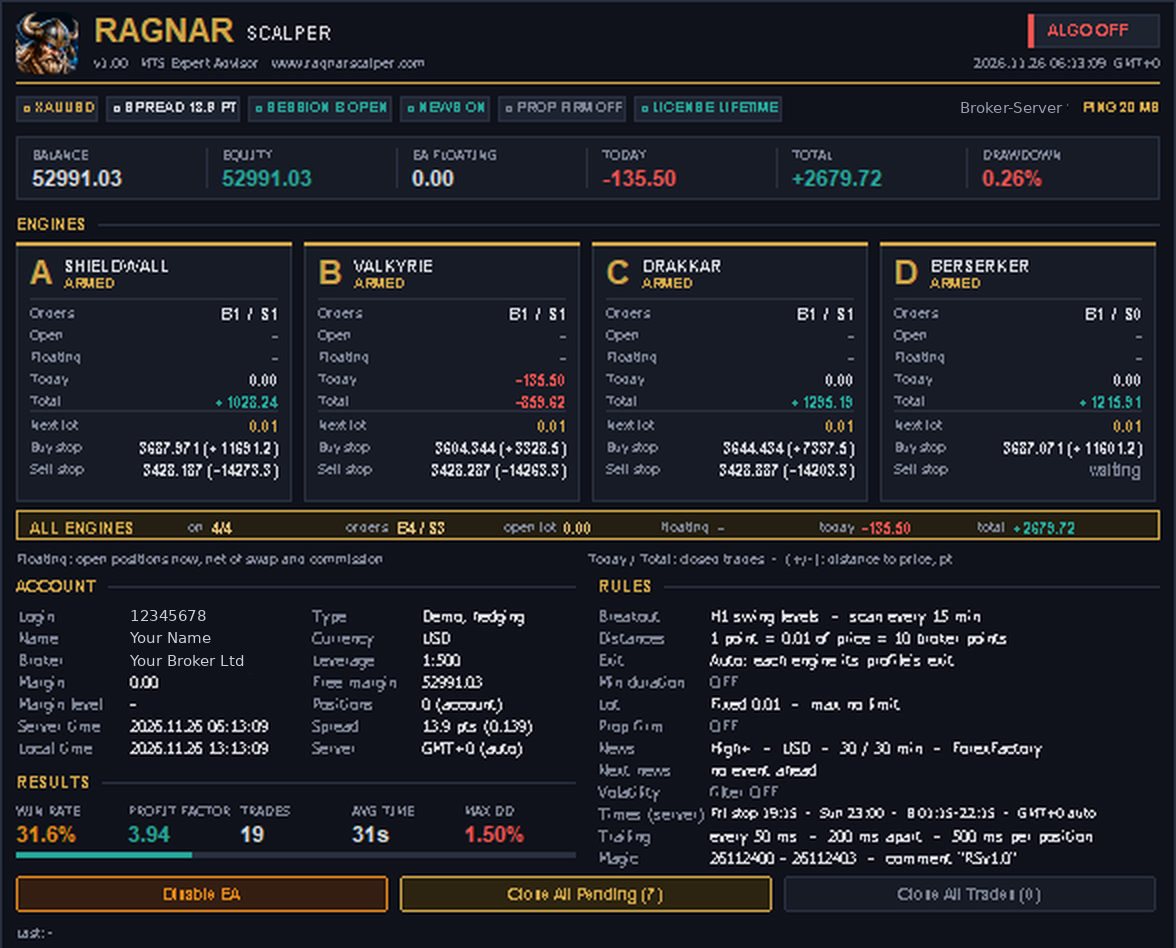
- 1Title. Version, platform and website.
- 2Status. What the EA does now - see the list below.
- 3Status chips. Symbol, spread, engine B's session, news filter, Prop Firm Mode and your license (until when, or LIFETIME).
- 4Server and ping. The broker server and MetaTrader's ping to it.
- 5Account tiles. Balance, equity, the EA's open profit (floating), today's and the total closed result, and the drawdown from the highest equity.
- 6Engine cards A - D. Each engine's profile and state, its waiting orders (B buy stops / S sell stops), open trades, floating, today and total, the next lot, and the buy stop and sell stop it waits with, with their distance from price in points.
- 7All engines. The four engines together: how many are on, waiting orders, open lots, floating, today and total.
- 8Account. Login, name, broker, margin, server and local time, account type, currency, leverage, free margin, positions, spread.
- 9Rules. The settings in use, in words: breakout timeframe, distances, exit, minimum duration, lot, prop firm, news and the next event, volatility filter, the Friday / Sunday times, trailing and the magic numbers.
- 10Results. Win rate, profit factor, number of trades, average time in a trade and the maximum drawdown of this EA's closed trades on this account.
- 11Buttons. Disable EA, Close All Pending, Close All Trades - see the next section.
- 12Last action. The EA's latest order or change, for example "B buy stop ... lot ... SL ... TP ...".
The status
| Status | Meaning |
|---|---|
| ACTIVE | Licensed and trading: the engines scan and place their orders. |
| NO LICENSE | No active license for this account. Add the account number in the dashboard and allow the website under WebRequest (step 4). Open trades keep their stop loss and take profit. |
| ALGO OFF | Algo Trading is off in MetaTrader's toolbar or on the EA's Common tab. |
| DISABLED | You pressed Disable EA: nothing new, open trades still managed. |
| NEWS PAUSE | A news event is near: waiting orders are lifted until the window ends. |
| FLAT HOURS | Prop Firm Mode with Flat Hours, 15:05 - 17:00 Chicago: flat, nothing new. |
| STOPPED | A daily limit of Prop Firm Mode was reached: the EA rests until the next trading day. |
| WEEKEND | Pending orders were cleared before the weekend; scanning starts again on Sunday evening. |
Reading an engine card
- Orders B1 / S1 - one buy stop and one sell stop are waiting.
- Open 1 / 5 - one trade open, at most five for this engine.
- Buy stop 3718.0 (+240) - the buy stop waits at 3718.0, 240 points (2.40) above the price. A minus means below.
- waiting - no level to trade on that side yet.
- Next lot - the size of the engine's next order with your lot sizing.
8. The buttons
| Button | What it does |
|---|---|
| Disable EA / Enable EA | Disable: every waiting order is removed and nothing new is placed, but open trades keep being managed (trailing, exits). Stays disabled after a restart until you press Enable. |
| Close All Pending (n) | Deletes this EA's waiting orders on this symbol. The engines place new ones at their next scan. |
| Close All Trades (n) | Closes this EA's open trades on this symbol at market. |
Every button asks first, and only touches this EA's orders on this chart's symbol - never your manual trades or other EAs.
9. Backtest in the Strategy Tester
- Save the license on this computer
The Strategy Tester has no internet. Attach the EA once to a live chart of your licensed account (Algo Trading may stay off): it saves the license on this computer for 7 days.
- Set up the test
View > Strategy Tester. Expert: RagnarScalper. Symbol: XAUUSD. Modelling: Every tick based on real ticks. Choose the dates, deposit and leverage.
- Load your settings and start
On the Inputs tab load a set file (or change the inputs) and press Start. The panel also shows in visual mode.
10. Day to day
- Leave it running all week. Before the weekend it clears its waiting orders; it starts again on Sunday evening.
- News: around high-impact USD news the status shows NEWS PAUSE and the engines step aside.
- Prop firm limits: when a daily limit is hit the EA closes its trades and rests until the next trading day.
- Your trade history appears in the dashboard: the EA sends its closed trades to your account page.
- Updating: download the new version, copy it over the old file in MQL5 > Experts, and attach the EA again. Your inputs stay if you saved them in a set file.
11. Several charts and accounts
Run one copy per symbol and account. Two copies on the same account and symbol (for example two set files) need different Magic numbers (General inputs) - copies with the same magic number would manage each other's orders. On other symbols the price distances scale to the symbol by themselves (input "Price distances").
12. Troubleshooting
| You see | What to do |
|---|---|
| NO LICENSE / not registered | Add the account number in the dashboard, check that your license is active, allow https://www.ragnarscalper.com under WebRequest. |
| ALGO OFF | Turn on the Algo Trading button and the EA's "Allow Algo Trading" (Common tab). |
| No news / NEWS NO DATA | Allow https://nfs.faireconomy.media under WebRequest. |
| No trades for hours | Normal - the engines wait for real breakouts. ARMED on a card means orders are waiting at the levels. |
| Panel too small or cut off | Make the chart bigger or set "Panel size" (General) to a percentage - 150 - 200 on Mac / Retina screens. |
| "Invalid stops" or rejected orders | Usually a broker's minimum stop distance or a closed market; the EA tries again at the next scan. Check the Experts tab for the broker's message. |
Still stuck? Write to [email protected] with your MT5 account number and a screenshot of the panel.