
Ragnar Scalper for TopstepX
A Windows program, version 1.01, that trades your Topstep accounts directly through TopstepX - one login, a tab per account and product, Topstep's rules built in.
1. What you need
- Windows 10 or 11 on your own computer. Topstep does not allow trading from a VPS, a VPN or a remote computer.
- A Topstep account on TopstepX: Trading Combine or Express Funded. Live Funded accounts cannot trade through the API.
- The ProjectX API subscription on your TopstepX login (a monthly fee charged by ProjectX, not by us) and its API key.
- An active Ragnar Scalper license. It includes 1 TopstepX user name with every account in it - one Combine or ten.
- Nothing else: no NinjaTrader, no MetaTrader. The program talks to TopstepX itself.
2. Prepare TopstepX
- Subscribe to the API
In TopstepX open Settings > API. It leads you to the ProjectX Dashboard: subscribe to the API there, then link it back in TopstepX under Settings > API > ProjectX Linking.
- Create the API key
On the ProjectX Dashboard, under API, create a key and copy it. Treat it like a password: with it and your user name a program can trade your accounts.
- Turn off automatic brackets
In TopstepX Settings > Risk Settings, switch off automatic brackets (auto OCO) for the accounts the program trades. Ragnar Scalper places each trade's stop and target itself; automatic brackets would add a second set.
- Know your user name
Your TopstepX user name is the name you log in with - not your email address. You find it in TopstepX under your profile.
3. Register your user name
- Add it to the dashboard
Go to Dashboard > Accounts > TopstepX, type your TopstepX user name and press Add user name. Every account under it is covered - present and future Combines.
- Copy your License Key
In Dashboard > Downloads copy your License Key (RSK-...).
4. Download and first start
- Download
In Dashboard > Downloads download RagnarScalperTopstepX.exe. Put it in a folder of its own, for example
C:\RagnarScalper. No installation is needed. - Start it
Double-click the file. If Windows shows "Windows protected your PC", click More info and then Run anyway.
- Its data folder
Next to the program a folder
RagnarScalperTopstepX_dataappears. It holds your settings (the API key encrypted for your Windows user), each tab's state and trade history, and the logs. Keep it with the program when you move it.
5. The window
Left is the panel of the tab you look at; right are the tabs. The bar between them can be dragged to make either side wider - the program remembers it.
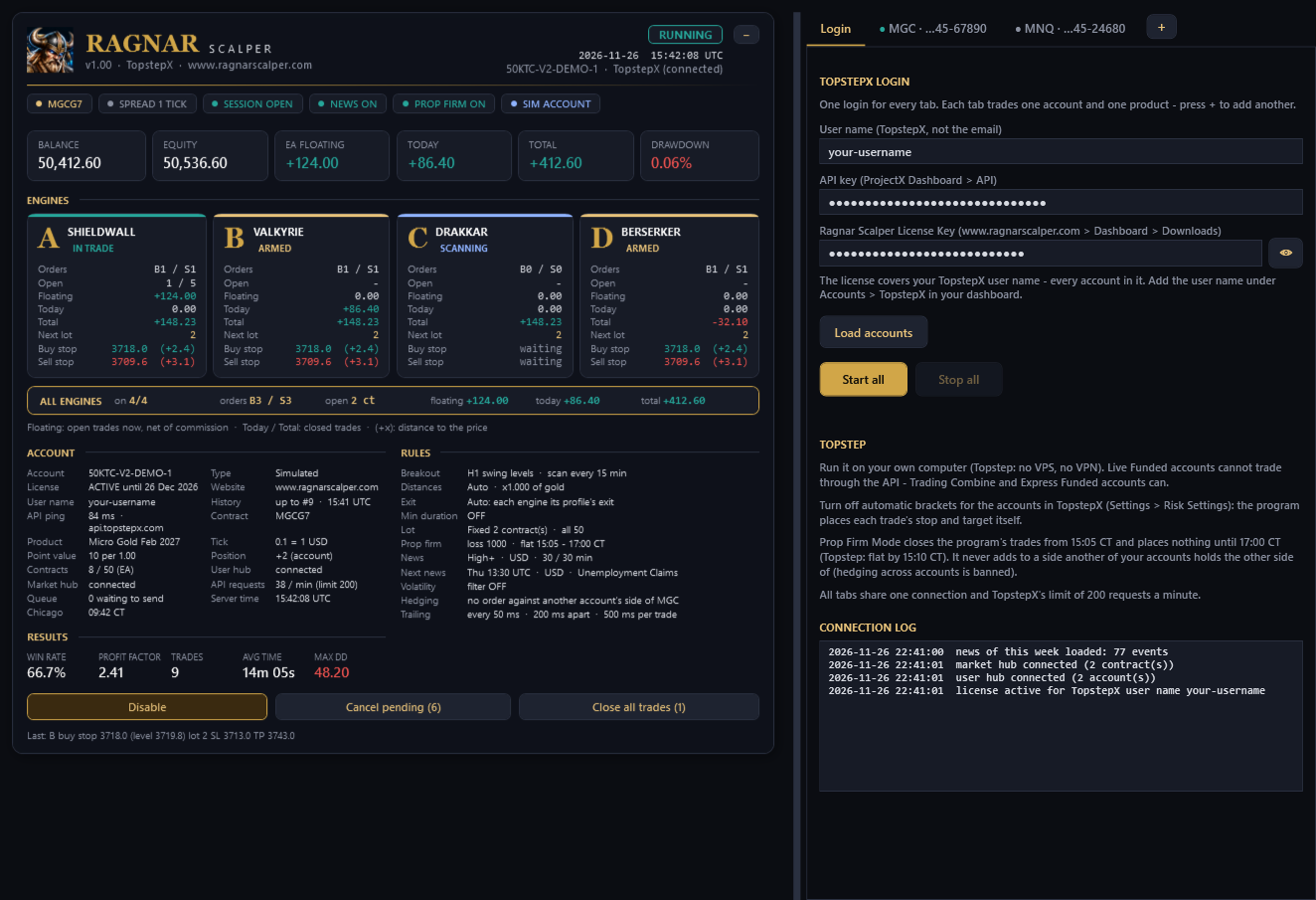
- 1Panel. Everything about the account tab chosen last: status, engines, account, rules, results and the buttons. Read it in section 10.
- 2Splitter. Drag it left or right.
- 3Tab Login. The one TopstepX login for all tabs.
- 4Account tabs. One per account and product, named "product · end of the account". The dot is green while it runs, gold while it starts, red on an error, grey when stopped.
- 5Add a tab (+). Right after the last tab: a new account tab, with the settings of the tab you look at. When the tabs do not fit, arrows ‹ › appear next to it; the mouse wheel over the tabs scrolls them too.
6. Tab Login
- 1User name. Your TopstepX user name, not the email.
- 2API key. The key from the ProjectX dashboard (hidden).
- 3License Key and the eye. Your Ragnar Scalper License Key. Once a tab starts, it is hidden so a screenshot does not show it; the eye shows or hides it.
- 4Load accounts. Logs in and reads your accounts, so each account tab can offer them.
- 5Start all / Stop all. Starts every account tab that is not running / stops every running one. Start is grey until a License Key is entered.
- 6Topstep. Topstep's own rules the program follows - see section 11.
- 7Connection log. The shared connection: news calendar, market and user hubs, the license - in your computer's time.
- Enter the login
User name, API key and License Key.
- Press Load accounts
The program logs in. The connection log says how many accounts it found; an error says why (see Troubleshooting).
- Go to an account tab
Choose the account and the product there and press Start - next section.
7. Account tabs: Trade
Each account tab trades one account and one product. Inside it are three tabs: Trade, Settings and Log.
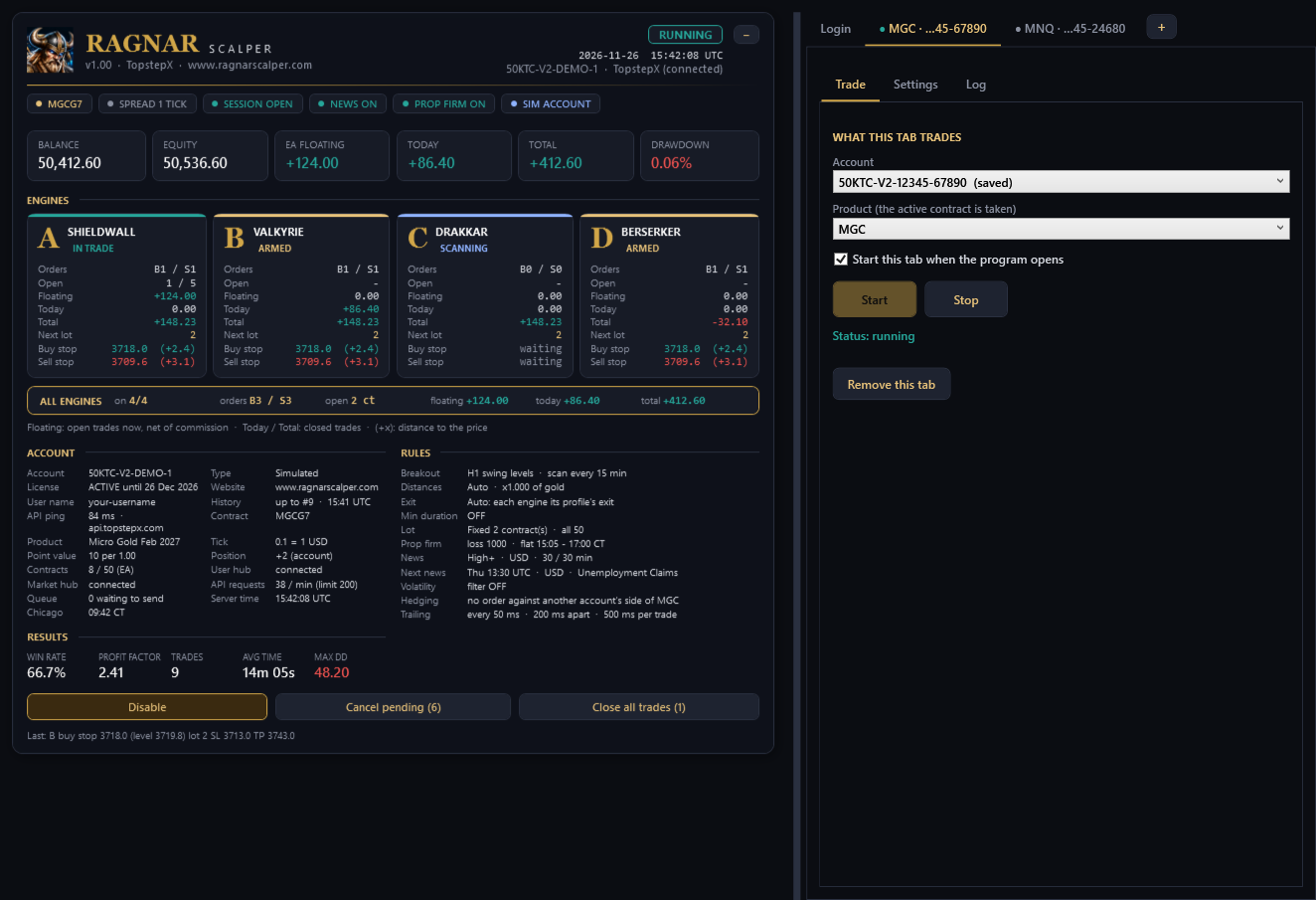
- 1The account tab. Product and the end of the account's name.
- 2Trade · Settings · Log. The tab's three pages.
- 3Account. The Topstep account this tab trades (Load accounts first).
- 4Product. MGC, GC, MNQ, NQ, MES, ES, MYM, YM, MCL, CL, SIL or SI. The program takes the active (front) contract by itself.
- 5Start this tab when the program opens. Tick it for the tabs that should run by themselves after a restart.
- 6Start / Stop. Start the tab, or stop it. Stopping cancels its waiting orders; open trades keep their stop and target at TopstepX.
- 7Status. "running", or what it waits for, or why it could not start.
- 8Remove this tab. Its settings go; its trade history file stays in the data folder.
- Several products on one account: one tab per product (for example MGC and MNQ on the same Combine).
- Several accounts: one tab per account - each with its own settings, panel and history.
- One tab per account and product family: MGC and GC on the same account would be one position, so the second tab is refused.
8. Settings
Each tab has its own settings - the same inputs as on MetaTrader 5, with contracts in place of lots. Change them, press Save settings at the bottom; a running tab uses them after Stop and Start.
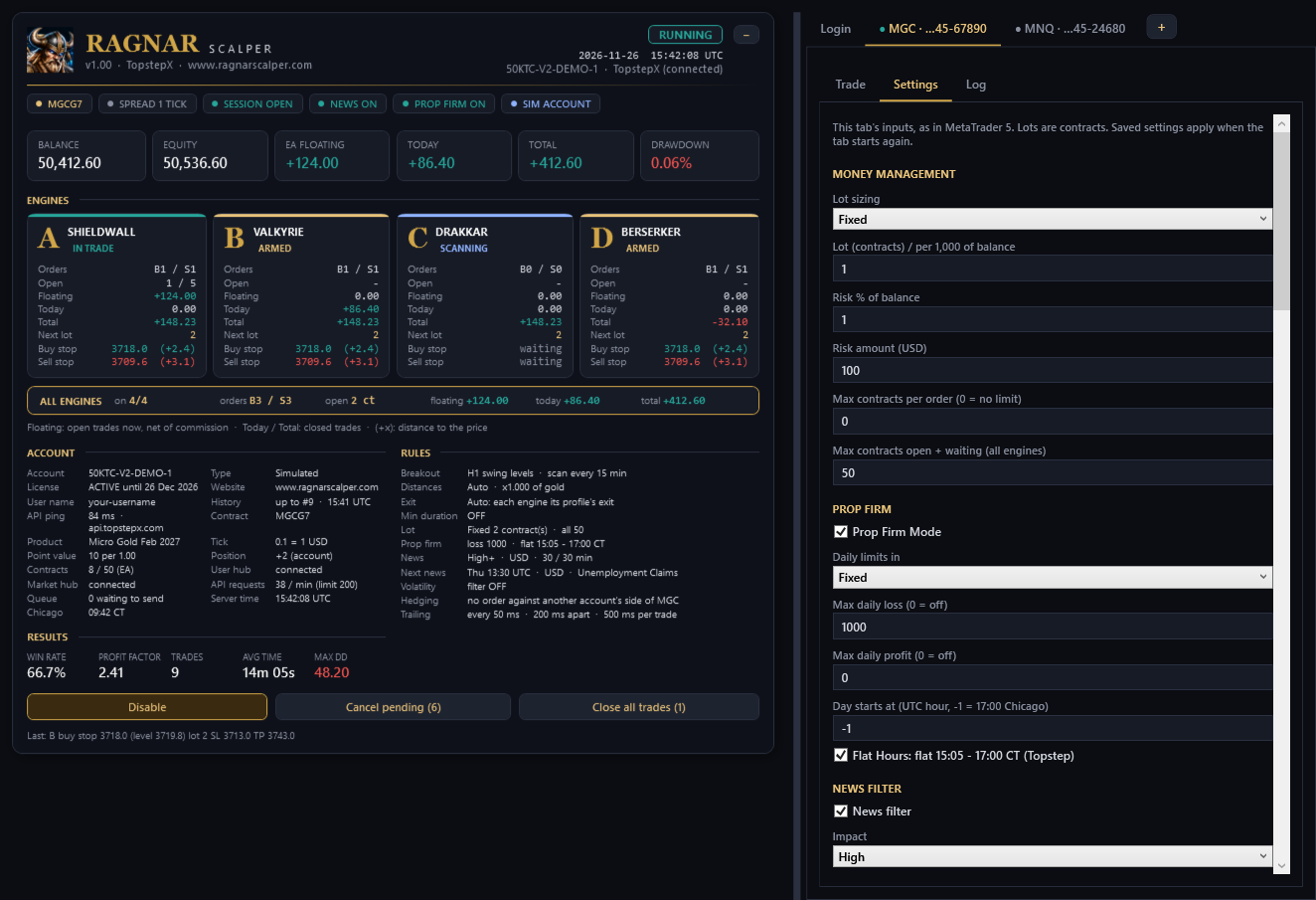
- 1The note. Lots are contracts; saved settings apply when the tab starts again.
- 2Money Management. How many contracts each trade gets.
- 3Prop Firm. Daily limits and Flat Hours.
- 4News Filter. Pause around economic news. Scroll down for Exit, Engines A - D, Trailing, Volatility Filter, General and Save settings.
| Setting | What it does |
|---|---|
| Money Management | |
| Lot sizing | Fixed contracts, contracts per 1,000 of balance, a % of the balance at risk, or a fixed amount at risk (sized from the engine's stop loss). |
| Lot (contracts) / per 1,000 of balance | The contracts of the fixed mode, or per 1,000 of balance. |
| Risk % of balance / Risk amount (USD) | What a stopped trade may cost in the two risk modes. |
| Max contracts per order | No order above it (0 = no limit). |
| Max contracts open + waiting | All engines together - open contracts plus waiting orders. Default 50, the most a Topstep 50K account allows in micros. Lower it for a smaller account or bigger contracts. |
| Prop Firm | |
| Prop Firm Mode | Switches the limits and Flat Hours on. Keep it on for Topstep. |
| Daily limits in / Max daily loss / Max daily profit | Fixed amounts or % of the day's starting balance. Reached = the tab closes its trades and rests until the next trading day (0 = off). Keep the loss limit inside Topstep's own Daily Loss Limit. |
| Day starts at | -1 = 17:00 Chicago, Topstep's trading day. |
| Flat Hours | Flat from 15:05 to 17:00 Chicago time, nothing new in between (Topstep: flat by 15:10 CT). |
| News Filter | |
| News filter / Impact / Currencies / Minutes before, after | Which events pause the tab and for how long: waiting orders are lifted, nothing new is placed. |
| Exit | |
| Exit mode | Profile: each engine uses its profile's exit. Custom: the five custom values for all engines, in points of gold (100 = 1.00 of price). |
| Minimum trading duration | No take profit, trailing or closing by the program before a trade is this many seconds old; the stop loss always stays. |
| Engine A, B, C, D | |
| Enabled / Direction / Profile / Max open trades / Trade a level again | As on every platform: on or off, both sides or one, the profile (Shieldwall, Valkyrie, Drakkar, Berserker), its open trades limit, and whether a level may be traded again. |
| Trailing, Volatility Filter, General | |
| Trailing timing | How often trades are looked at and the time between stop moves. Leave as they are. |
| Min mean H1 range / Over H1 candles | Trade only while the market moves at least that much (0 = off). |
| Price distances / Fixed distance multiplier | Auto: gold as it is, other products scaled by their own volatility. |
| Friday / Sunday | When waiting orders are cleared before the weekend and when the week's first scan happens (UTC). |
| Order comment / Panel size / Log every decision | The text in the order tags, the panel's size, and extra lines in the tab's Log. |
9. Log
The tab's own log, in your computer's time: the start, the license, the history loaded, every order placed, filled, moved or cancelled, and each closed trade with its result. The same lines are written to log_<account>_<product>.txt in the data folder; the Login tab's lines to log_login.txt.
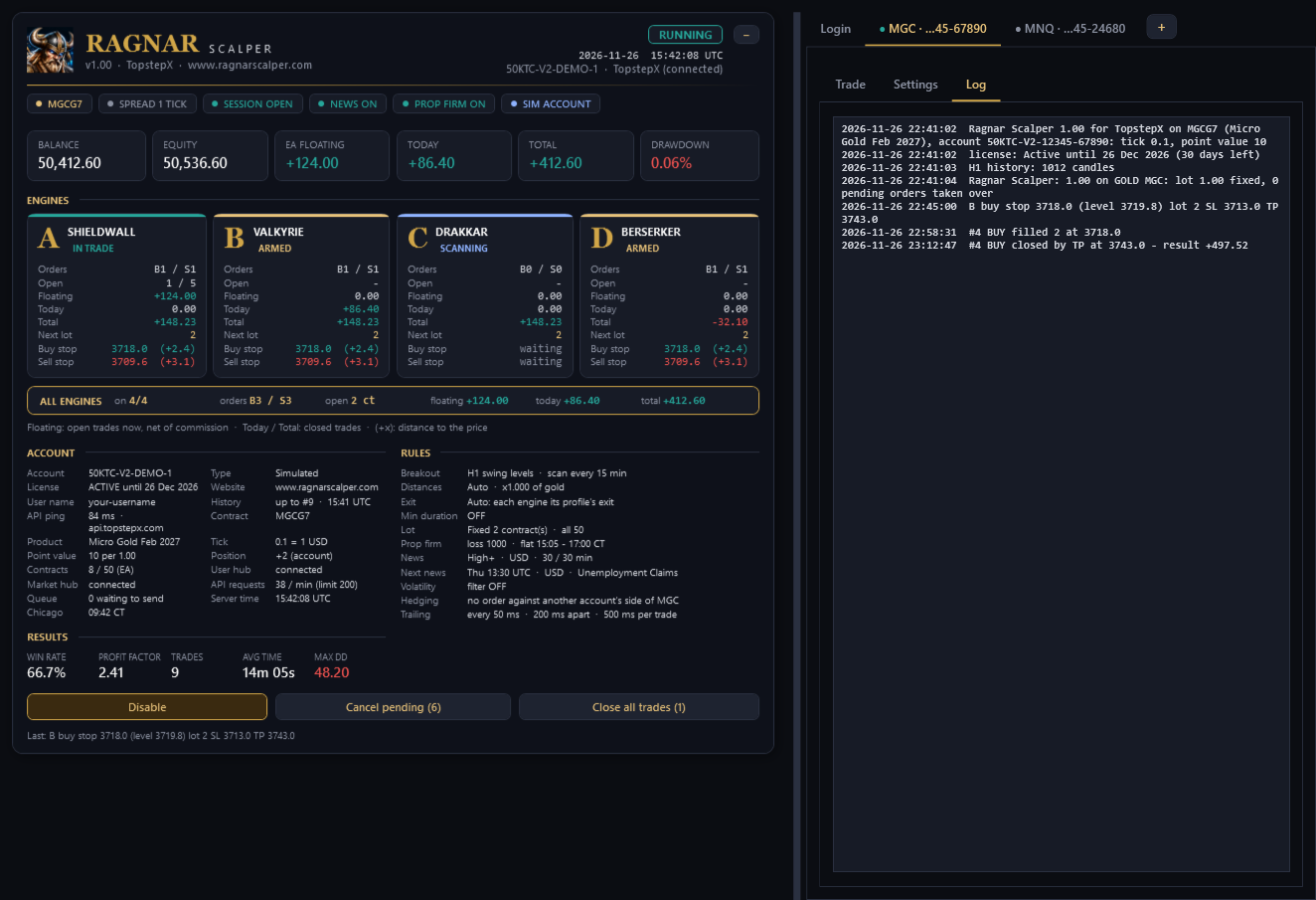
- 1Log. Opened from the tab's third page.
- 2The start. Product, contract, account, tick and point value; the license; the one-hour history; the settings in use.
- 3Orders and trades. A buy stop placed, filled, and closed by its target with the result.
10. Reading the panel
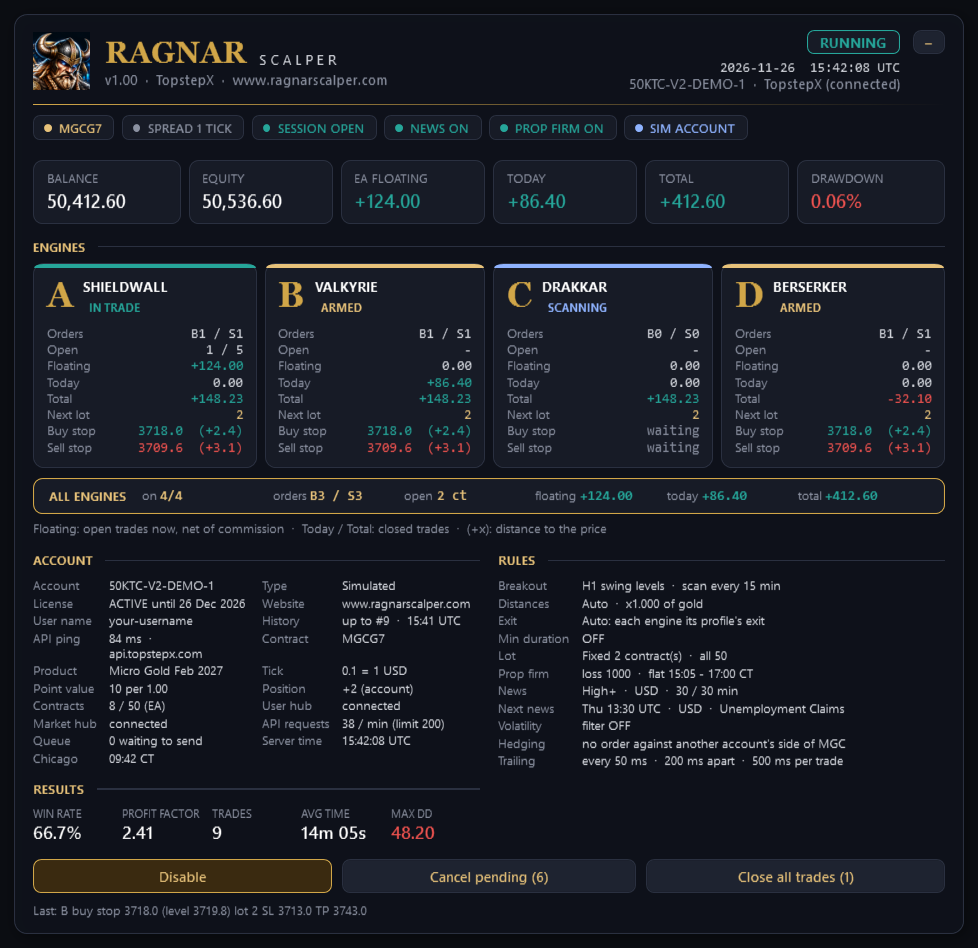
- 1Title. Version, "TopstepX" and the website.
- 2Status. RUNNING, CHECKING LICENSE, NO LICENSE, DISABLED, PROP STOPPED, SESSION CLOSED or NEWS PAUSE - see below. The – folds the panel.
- 3Clock and connection. The time in UTC, the account and the connection.
- 4Status chips. Contract, spread in ticks, session, news filter, Prop Firm Mode, simulated or live account.
- 5Account tiles. Balance, equity, the program's open profit, today's and the total closed result, the drawdown.
- 6Engine cards A - D. Profile, state, waiting orders, open trades, results, next size and the buy / sell stop it waits with (distance to the price in brackets).
- 7All engines. The engines together.
- 8Account. The rows of the next table.
- 9Rules. The settings in use in words, the next news event, and the hedging guard.
- 10Results. Win rate, profit factor, trades, average time and maximum drawdown of the tab's closed trades.
- 11Buttons. Disable, Cancel pending, Close all trades.
- 12Last action. The latest order or change.
The account rows
| Row | Meaning |
|---|---|
| Account / Type | The Topstep account and whether it is simulated (Combine, Express Funded) or live. |
| License / Website | Your license and the website it checks with. |
| User name | The TopstepX user name the license is checked for. |
| History | The closed trades sent to your dashboard ("up to #9" = trades up to number 9 are on the website). |
| API ping | How long TopstepX's server takes to answer (the middle of the last 20 requests) and its address. |
| Contract / Product | The active contract (for example MGCG7 = micro gold, February 2027) and its name. |
| Tick / Point value | The contract's smallest price step and its value, and the money per 1.00 of price per contract. |
| Position / Contracts | The account's position in this contract, and the tab's open + waiting contracts against its limit. |
| User hub / Market hub | TopstepX's live connections for orders and for prices. |
| API requests / Queue | Requests of the last minute, all tabs together (TopstepX allows 200; the program keeps under 160), and orders waiting to be sent. |
| Server time / Chicago | UTC and Chicago time (Topstep's day and Flat Hours). |
The status
| Status | Meaning |
|---|---|
| CONNECTING, WAITING FOR THE FIRST QUOTE | The tab is starting. On a closed market it waits for prices; after 2 minutes without any it says "no quotes - is the market open?". |
| RUNNING | Licensed and trading. |
| CHECKING LICENSE | The first license check is under way. |
| NO LICENSE | The user name is not registered, the key is wrong, or the license ended. Nothing new is placed; open trades keep their exits. |
| DISABLED | Disabled with the panel's button: nothing new, open trades still managed. |
| PROP STOPPED | A daily limit was reached - resting until the next trading day. |
| SESSION CLOSED | The market is closed, or Flat Hours. |
| NEWS PAUSE | A news window is on. |
The buttons
| Button | What it does |
|---|---|
| Disable / Enable | Disable: no order waits, nothing new; open trades keep their stop, target and trailing. Kept until you press Enable. |
| Cancel pending (n) | Cancels this tab's waiting entry orders; the engines place new ones at their next scan. |
| Close all trades (n) | Closes this tab's open trades at market. Asks first. |
11. How it trades on Topstep
- Its orders are tagged
RS-<product>-...in TopstepX. Each entry is a stop order; when it fills, the program places that trade's own stop loss and take profit. Several trades can be open at once - the account shows their sum as one position. - Do not move or cancel these orders by hand. The program manages them, moves the stops when trailing, and takes them back after a restart.
- Flat Hours: with Prop Firm Mode the program closes its trades from 15:05 Chicago time and places nothing until 17:00, also before the weekend.
- No hedging across accounts: Topstep bans holding opposite sides of the same product in different accounts. The program never adds to a side while another of your accounts - or this account in MGC vs GC - holds the other side, and cancels a waiting entry that would do so.
- One connection for all tabs and TopstepX's limit of 200 requests a minute, shared.
- Your manual trades in TopstepX are left alone - but a manual trade in the same product changes the account's position, so keep them apart.
12. Day to day
- Keep the computer on and the program open during the week. With "Start this tab when the program opens", a restart brings every tab back by itself.
- Closing the window asks first, cancels the waiting orders and leaves open trades with their stop and target at TopstepX.
- Closed trades go to your dashboard every minute; each account appears under your TopstepX user name with its trades.
- Contract rollover is automatic: a tab started after the roll takes the new active contract.
- Updating: close the program, replace the exe with the new download (same folder, keep the data folder), start it again.
13. Troubleshooting
| You see | What to do |
|---|---|
| "TopstepX login refused: user name not found" | Use the TopstepX user name, not the email. |
| "... wrong user name or API key" | Check both; make a new key on the ProjectX Dashboard if needed. After a refused login the program waits 5 minutes before it tries again by itself - press Load accounts to try at once. |
| "... no API subscription" | Subscribe in the ProjectX Dashboard, then link it in TopstepX: Settings > API > ProjectX Linking. |
| "... the agreements in TopstepX are not signed yet" | Log in to TopstepX in the browser and sign the agreements it shows. |
| Start is grey | Enter your License Key on the Login tab. |
| "Load accounts, then choose this tab's account" | Press Load accounts on the Login tab, then choose the account in the tab. |
| NO LICENSE - user name not in your dashboard | Add the TopstepX user name under Accounts > TopstepX. The program checks again within 5 minutes. |
| "no active contract for ..." | The product has no tradable contract on your account right now; choose another product or wait for the session. |
| "another tab already trades ..." | One tab per account and product family. Use the existing tab. |
| An order refused for hedging | Another of your accounts holds the other side of the same product. It is Topstep's rule; the program waits. |
| "contracts open + waiting is the limit" | The Money Management limit is reached; raise it only if your account allows more contracts. |
| "no quotes - is the market open?" | The market is closed (daily break, weekend, holiday). The tab starts trading when prices come. |
Still stuck? Write to [email protected] with your TopstepX user name and the tab's Log.