
Ragnar Scalper on NinjaTrader 8
The same four engines as a NinjaScript strategy, version 1.01, for micro and mini gold futures (MGC, GC) and other futures - on a live, prop firm or simulation account.
1. What you need
- NinjaTrader 8 on Windows, logged in with your NinjaTrader account (the user name and password you start NinjaTrader with).
- A connection with real-time futures data and an account to trade: your broker, a prop firm account (many futures prop firms give you a Tradovate or Rithmic login for NinjaTrader 8), or NinjaTrader's simulation account Sim101.
- An active Ragnar Scalper license. It includes 1 NinjaTrader user name - every account NinjaTrader 8 has under that login runs with it, Sim101 too.
- For live trading: NinjaTrader running all week - on a computer that stays on, or a VPS.
2. Your NinjaTrader user name
The license goes by the user name NinjaTrader 8 is logged in with, not by an account. The strategy reads it by itself and shows it on its panel in the row User name.
- Find the user name
It is the name you log in to NinjaTrader 8 with. If you are not sure, start the strategy once (section 5): its panel shows the user name it checked, with NO LICENSE until it is registered.
- Register it
Go to Dashboard > Accounts > NinjaTrader 8, type the user name and press Add user name. Every account of that user name is now covered.
- Copy your License Key
In Dashboard > Downloads copy your License Key (RSK-...). The strategy needs it.
3. Prop firm accounts on Tradovate
Many futures prop firms run their evaluation and funded accounts on Tradovate and let you trade them from NinjaTrader 8. Ragnar Scalper then runs in NinjaTrader 8 exactly as on any other account: NinjaTrader is the platform, Tradovate is the connection to the firm's account.
- Get the login from your prop firm
After you buy an evaluation the firm sends a Tradovate user name and password (sometimes also a NinjaTrader license key). Keep its email: it says which environment the account is on - usually Demo for an evaluation and Live for a funded account.
- Add the Tradovate connection in NinjaTrader 8
In the Control Center open Connections > Configure, add a connection of type Tradovate, enter the Tradovate login from the firm, choose the environment and save. Then Connections > [your Tradovate connection] to connect. If your firm gives other connection steps (for example Rithmic), follow them - the strategy does not mind which connection brings the account.
- Check the account
The firm's account appears in NinjaTrader's Accounts tab with its own name (often a long code). A chart of MGC on that connection should show live prices.
- Start the strategy on it
Add RagnarScalper to the MGC chart (section 5) and choose the firm's account in its Account property. Switch on Prop Firm Mode with the firm's daily loss limit, and Flat Hours if the firm wants you flat at the daily close.
4. Download and import
- Download the file
In Dashboard > Downloads download the NinjaTrader 8 file (a .zip). Do not unzip it.
- Import it
In NinjaTrader 8 open Tools > Import > NinjaScript Add-On..., choose the downloaded zip and confirm. If NinjaTrader asks to replace an older version, answer yes.
- Wait for the import
NinjaTrader imports and compiles it, then reports that the import succeeded. RagnarScalper is now in the list of strategies.
5. Start it on a chart
- Open a futures chart
New > Chart, instrument MGC (micro gold) or GC, the front contract. Any timeframe works: the strategy loads its own one-hour data.
- Add the strategy
Right-click the chart > Strategies.... In the list of available strategies select RagnarScalper and press Add.
- Fill in its properties
Choose the Account it trades (for example Sim101 to try it first), paste your License Key, and keep or change the settings (next section).
- Enable it
Tick Enabled and press OK. The panel appears on the chart. After the license check its status reads RUNNING.
6. The settings
The strategy's properties, in numbered groups, are the same inputs as on MetaTrader 5 - with contracts in place of lots. The defaults are a complete setup; choose the size (Money Management) and, for a prop firm, the limits.
00. License
| Property | What it does |
|---|---|
| License Key | Your key from Dashboard > Downloads. Shown as dots; never on the chart's label. |
01. Money Management
| Property | What it does |
|---|---|
| Lot sizing | Fixed contracts, contracts per 1,000 of balance, a % of the balance at risk per trade, or a fixed amount at risk (sized from the engine's stop loss). |
| Contracts (fixed) / per 1000 of balance | The fixed number of contracts, or contracts per 1,000 in that mode. |
| Risk per trade, % of balance / amount | What a stopped trade may cost in the two risk modes. |
| Max contracts per order | No order above this, whatever the sizing gives (0 = no limit). |
| Max contracts open + waiting | A safety cap: open contracts plus every waiting order of all engines together. An order that would go above it is not placed. |
02. Prop Firm
| Property | What it does |
|---|---|
| Prop Firm Mode | Switches the limits below on. |
| Limits in | % of the day's starting balance, or fixed amounts. |
| Max daily loss / profit | When equity reaches it, the strategy closes its trades and rests until the next trading day (0 = off). |
| Daily reset hour | When the trading day starts, in UTC; -1 = 17:00 Chicago, the futures day. |
| Flat Hours | Flat from 15:05 to 17:00 Chicago, nothing new in between. |
03. News Filter
| Property | What it does |
|---|---|
| Use news filter | Pause around economic news from the weekly calendar (read over the internet every few hours). |
| Impact level / Currencies | Which events count: High only, Medium and High, or all; the currencies, comma separated (ALL = every one). |
| Pause minutes before / after | Waiting orders are lifted and nothing new is placed in this window. |
04. Exit
| Property | What it does |
|---|---|
| Exit mode | Auto: each engine uses its profile's exit. Custom: one stop loss, take profit and trailing for all engines (the next five properties, in points: 100 = 1.00 of price). |
| Minimum trading duration | No take profit, no trailing and no closing by the strategy before a trade is this many seconds old; the stop loss always stays. |
05 - 08. Engines A, B, C, D
| Property | What it does |
|---|---|
| Engine on | Switch the engine on or off. |
| Direction | Both, buy only or sell only. |
| Profile | Shieldwall, Valkyrie, Drakkar or Berserker - the engine's entry distance and exit. |
| Max open trades | The engine's limit of open trades. |
| Trade a level again | Never, always, only after a loss there, or not while a trade of that level is open (default). |
09 - 11. Trailing, Volatility Filter, General
| Property | What it does |
|---|---|
| Trailing timing (3 properties) | How often a trade is looked at and the minimum time between stop moves. Leave as they are. |
| Volatility filter | Trade only while the average one-hour range is at least this many points (0 = off), averaged over the last N hours. |
| Price distances / Distance multiplier | Auto: gold as it is, other instruments scaled by their own volatility. Fixed: your multiplier. |
| Friday stop / Sunday start | When waiting orders are cleared before the weekend (a time, or minutes before Friday's close) and when the week's first scan happens, in UTC. |
| Order name tag | The tag in the strategy's order names. |
| Show the panel / Panel size | The panel on the chart and its size in percent. |
| Log every decision | Extra lines in NinjaTrader's Output window, for support. |
| Disabled | Start disabled: nothing new, open trades still managed (the panel's button does the same). |
7. Reading the panel
The panel sits on the chart; drag it by its head, fold it with –. The values below are an example.
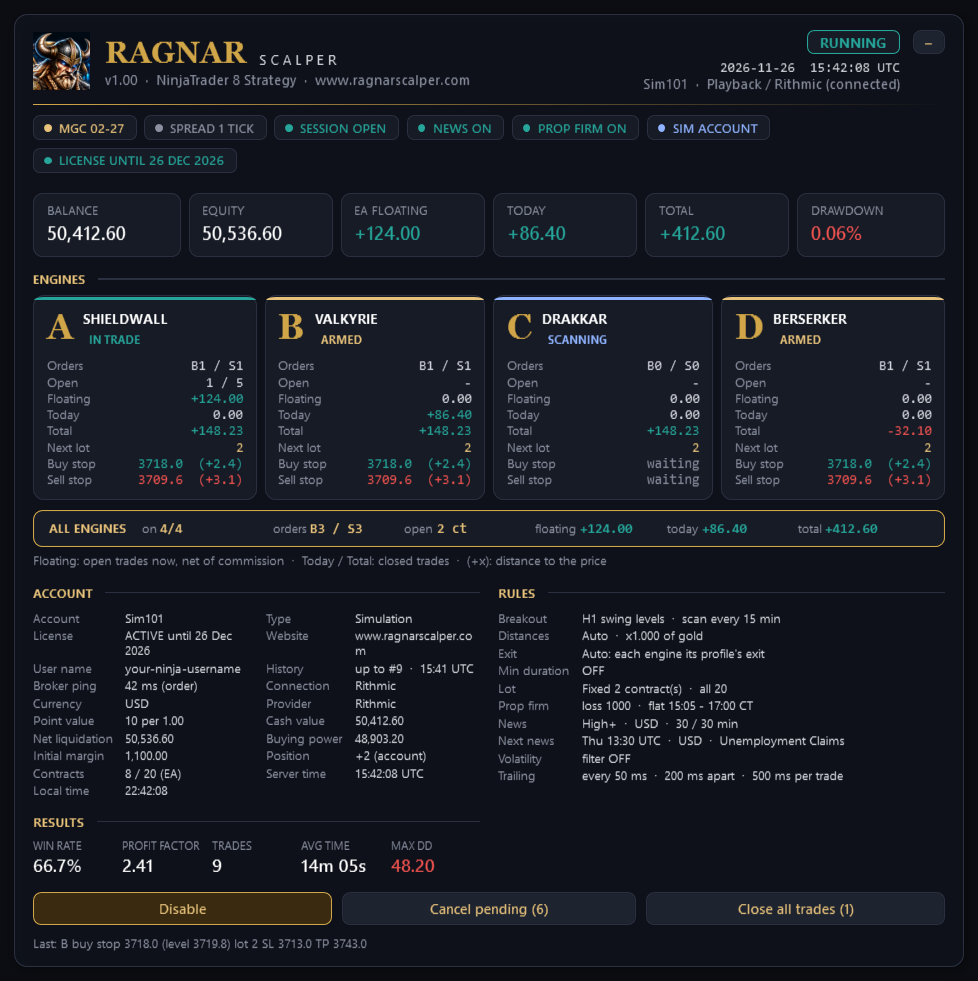
- 1Title. Version, "NinjaTrader 8 Strategy" and the website.
- 2Status. RUNNING, CHECKING LICENSE, NO LICENSE, DISABLED, PROP STOPPED, SESSION CLOSED or NEWS PAUSE - see below. The – next to it folds the panel.
- 3Clock and connection. The time in UTC, the account and NinjaTrader's connection.
- 4Status chips. Contract, spread in ticks, session, news filter, Prop Firm Mode, simulation or live account, and your license.
- 5Account tiles. Balance, equity, the strategy's open profit, today's and the total closed result, the drawdown.
- 6Engine cards A - D. Profile, state (IN TRADE, ARMED, SCANNING, PAUSED, OFF), waiting orders, open trades, results, next size and the buy / sell stop it waits with.
- 7All engines. The engines together: on, orders, open contracts, floating, today, total.
- 8Account. The rows of the next table.
- 9Rules. The settings in use, in words, and the next news event.
- 10Results. Win rate, profit factor, trades, average time and maximum drawdown of the strategy's closed trades.
- 11Buttons. Disable, Cancel pending, Close all trades.
- 12Last action. The latest order or change.
The account rows
| Row | Meaning |
|---|---|
| Account / Type | The NinjaTrader account it trades and whether it is a simulation or live account. |
| License / Website | Your license (active until when, or why not) and the website it checks with. |
| User name | The NinjaTrader user name the license is checked for - register this one in the dashboard. |
| History | The closed trades sent to your dashboard: "up to #9" = trades up to number 9 are on the website. |
| Broker ping | How long the broker takes to answer the strategy's orders (the middle of the last 20). Sim101 answers inside NinjaTrader, so it shows only a few ms. |
| Connection / Provider / Currency | NinjaTrader's connection for the account and the account's currency. |
| Point value | Money per 1.00 of price per contract (MGC: 10). |
| Cash value, Net liquidation, Buying power, Initial margin | As NinjaTrader reports them for the account. |
| Position / Contracts | The account's position in this instrument, and the strategy's open + waiting contracts against its cap. |
| Server time / Local time | UTC and your computer's time. |
The status
| Status | Meaning |
|---|---|
| STARTING, WAITING FOR THE FIRST BID / ASK, LOADING THE H1 HISTORY | The strategy is getting ready. On a closed market it stays at "waiting for the first bid / ask" until prices come. |
| NOT STARTED: ... | It could not start; the reason follows (for example missing history). Fix it and enable the strategy again. |
| RUNNING | Licensed and trading. |
| CHECKING LICENSE | The first license check is under way. |
| NO LICENSE | The user name on the panel is not registered, the key is wrong, or the license ended. Nothing new is placed; open trades keep their exits. |
| DISABLED | Disabled by you: nothing new, open trades still managed. |
| PROP STOPPED | A daily limit of Prop Firm Mode was reached - resting until the next trading day. |
| SESSION CLOSED | Outside the instrument's trading hours, or Flat Hours. |
| NEWS PAUSE | A news window is on. |
8. The buttons
| Button | What it does |
|---|---|
| Disable / Enable | Disable: no order waits and nothing new is placed; open trades keep their stop, target and trailing. Kept after a restart until you press Enable. |
| Cancel pending (n) | Cancels the strategy's waiting entry orders. The engines place new ones at their next scan. |
| Close all trades (n) | Closes the strategy's open trades at market. |
9. Its orders in NinjaTrader
- The strategy places account orders you can see in NinjaTrader's Orders tab, named
RS#<number>-E(the entry stop),-SL(stop loss),-TP(take profit) and-X(a close). - When an entry fills, its own stop loss and take profit are placed as a pair (one cancels the other). Several trades can be open at once; the account's position is their sum.
- Do not move or cancel these orders by hand - the strategy manages them and moves the stop when trailing.
- It remembers its trades in
Documents\NinjaTrader 8\RagnarScalper: after a restart of NinjaTrader it takes its open trades and orders back. - Your manual trades and other strategies are never touched.
10. Day to day
- Keep NinjaTrader running with the chart open. Before the weekend the strategy clears its waiting orders; it starts again on Sunday evening.
- The closed trades go to your dashboard every minute (row History on the panel).
- Contract rollover: when the front month changes, open a chart of the new contract and add the strategy there.
- Updating: download the new file and import it the same way; NinjaTrader replaces the old version. Re-enable the strategy.
11. Troubleshooting
| You see | What to do |
|---|---|
| NO LICENSE - user name not in your dashboard | Add the user name shown on the panel under Accounts > NinjaTrader 8. The strategy checks again within 5 minutes. |
| User name "not logged in" | NinjaTrader 8 is not logged in with a NinjaTrader account. Restart NinjaTrader and log in with your NinjaTrader user name. |
| License key not found | Paste the key again from Dashboard > Downloads (a new key replaces the old one). |
| No panel on the chart | Property "Show the panel" on; the strategy must be enabled. |
| An order rejected by the broker | Read the message in NinjaTrader's Log tab - often margin, a closed market or the account's own limits. The strategy tries again later. |
| "contracts open + waiting is the limit" | The safety cap of Money Management is reached; raise "Max contracts open + waiting" if your account allows more. |
Still stuck? Write to [email protected] with your NinjaTrader user name and a screenshot of the panel.